> ## Documentation Index
> Fetch the complete documentation index at: https://docs.topsort.com/llms.txt
> Use this file to discover all available pages before exploring further.
# Link Products to Banner Campaigns
> Connect specific products to banner campaigns for enhanced targeting, relevance, and attribution
export const ChangelogActions = () => {
return <>
;
};
August 4, 2025Ad PlatformNew Feature
We've added the ability to **link products to banner campaigns**, enabling advertisers to connect their banner ads with specific products for improved targeting, performance tracking, and attribution. This feature increases campaign relevance while providing better insights into product-driven advertising impact.
## Key Benefits
**Enhanced Targeting Precision**:
Banner campaigns automatically target relevant categories and keywords based on linked products
**Improved Attribution**:
Direct product linking enables accurate attribution without additional tracking complexity
**Automatic Trigger Generation**:
System automatically creates targeting triggers from product data, keywords, and categories
**Performance Insights**:
Track campaign performance at the individual product level for optimization opportunities
## How Product Linking Works
### Campaign Creation Flow
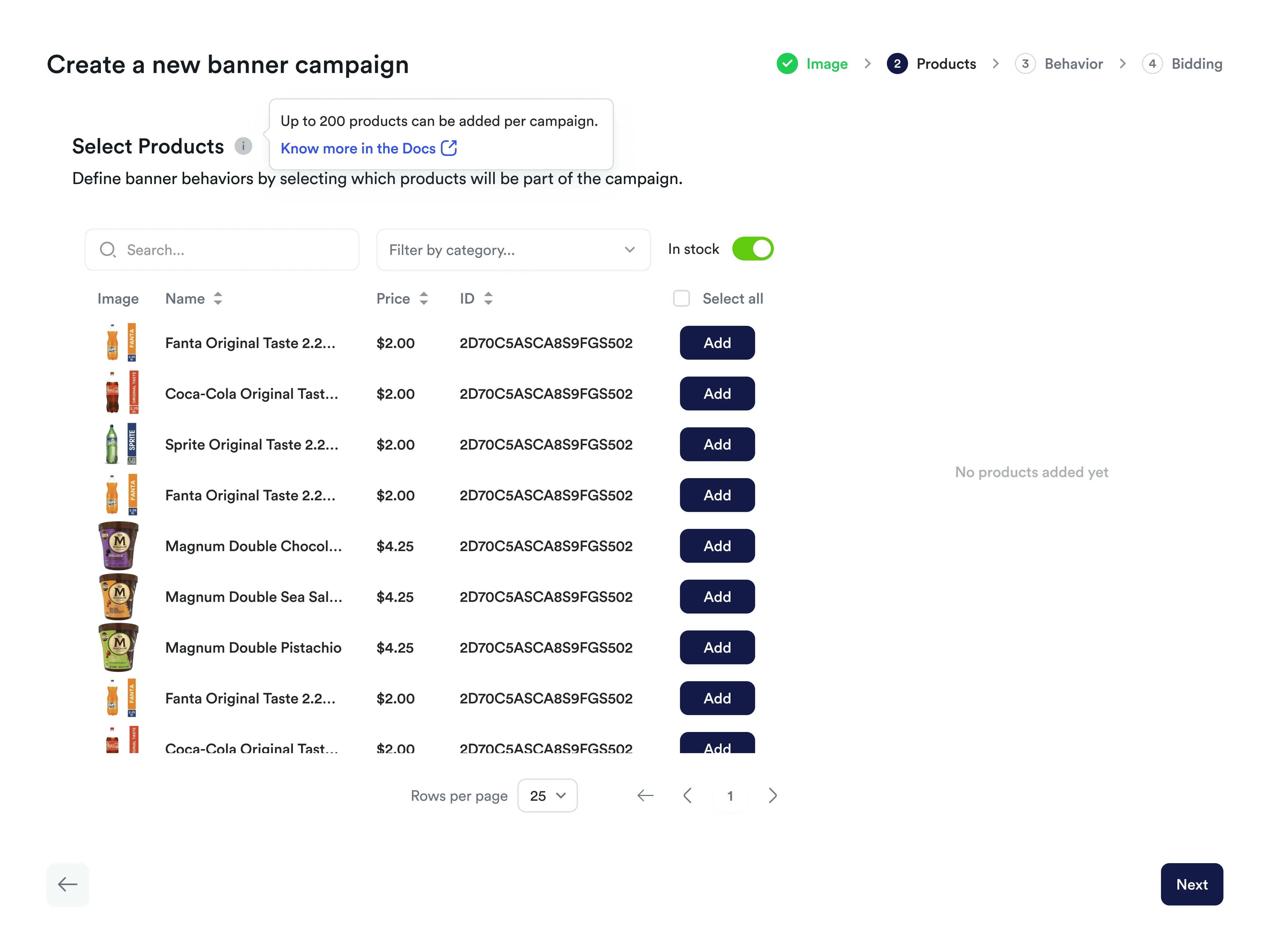
When creating banner campaigns, advertisers can now select up to **200 products** to associate with their campaign. Product selection is optional and can be done manually or via CSV upload.
### Automatic Targeting
Based on selected products, the system generates **"Automatic" targeting**:
* **Landing Page Slots**: Products used for attribution only
* **Category/Search Slots**: Product IDs, categories, and keywords become campaign triggers
* **Keyword Assignment**: Automatically includes marketplace-assigned keywords for selected products
### Product Availability
The auction response includes all selected products, with marketplaces responsible for filtering unavailable items during display.
## Setting Up Product-Linked Campaigns
1. **Create Banner Campaign** - Start the standard banner campaign creation process
2. **Select Products** - Choose up to 200 products manually or upload via CSV
3. **Configure Automatic Targeting** - System generates triggers based on product data
4. **Add Manual Targeting** - Optionally supplement with additional categories and keywords
5. **Launch Campaign** - Banner ads will target based on both automatic and manual triggers
## Attribution and Reporting
With product linking, all linked products are considered for **direct attribution** when purchases are reported, eliminating the need for complex tracking. Your campaign reporting will include both campaign-level metrics (impressions, clicks, ad spend, ROAS) and detailed product-level performance data.
***
Product linking for banner campaigns is available now in your campaign creation flow. Contact your Topsort representative to explore how product-linked banner campaigns can improve your advertising performance and attribution accuracy.
 ## Key Benefits
**Enhanced Targeting Precision**:
Banner campaigns automatically target relevant categories and keywords based on linked products
**Improved Attribution**:
Direct product linking enables accurate attribution without additional tracking complexity
**Automatic Trigger Generation**:
System automatically creates targeting triggers from product data, keywords, and categories
**Performance Insights**:
Track campaign performance at the individual product level for optimization opportunities
## How Product Linking Works
### Campaign Creation Flow
When creating banner campaigns, advertisers can now select up to **200 products** to associate with their campaign. Product selection is optional and can be done manually or via CSV upload.
### Automatic Targeting
Based on selected products, the system generates **"Automatic" targeting**:
* **Landing Page Slots**: Products used for attribution only
* **Category/Search Slots**: Product IDs, categories, and keywords become campaign triggers
* **Keyword Assignment**: Automatically includes marketplace-assigned keywords for selected products
### Product Availability
The auction response includes all selected products, with marketplaces responsible for filtering unavailable items during display.
## Setting Up Product-Linked Campaigns
1. **Create Banner Campaign** - Start the standard banner campaign creation process
2. **Select Products** - Choose up to 200 products manually or upload via CSV
3. **Configure Automatic Targeting** - System generates triggers based on product data
4. **Add Manual Targeting** - Optionally supplement with additional categories and keywords
5. **Launch Campaign** - Banner ads will target based on both automatic and manual triggers
## Attribution and Reporting
With product linking, all linked products are considered for **direct attribution** when purchases are reported, eliminating the need for complex tracking. Your campaign reporting will include both campaign-level metrics (impressions, clicks, ad spend, ROAS) and detailed product-level performance data.
***
Product linking for banner campaigns is available now in your campaign creation flow. Contact your Topsort representative to explore how product-linked banner campaigns can improve your advertising performance and attribution accuracy.
## Key Benefits
**Enhanced Targeting Precision**:
Banner campaigns automatically target relevant categories and keywords based on linked products
**Improved Attribution**:
Direct product linking enables accurate attribution without additional tracking complexity
**Automatic Trigger Generation**:
System automatically creates targeting triggers from product data, keywords, and categories
**Performance Insights**:
Track campaign performance at the individual product level for optimization opportunities
## How Product Linking Works
### Campaign Creation Flow
When creating banner campaigns, advertisers can now select up to **200 products** to associate with their campaign. Product selection is optional and can be done manually or via CSV upload.
### Automatic Targeting
Based on selected products, the system generates **"Automatic" targeting**:
* **Landing Page Slots**: Products used for attribution only
* **Category/Search Slots**: Product IDs, categories, and keywords become campaign triggers
* **Keyword Assignment**: Automatically includes marketplace-assigned keywords for selected products
### Product Availability
The auction response includes all selected products, with marketplaces responsible for filtering unavailable items during display.
## Setting Up Product-Linked Campaigns
1. **Create Banner Campaign** - Start the standard banner campaign creation process
2. **Select Products** - Choose up to 200 products manually or upload via CSV
3. **Configure Automatic Targeting** - System generates triggers based on product data
4. **Add Manual Targeting** - Optionally supplement with additional categories and keywords
5. **Launch Campaign** - Banner ads will target based on both automatic and manual triggers
## Attribution and Reporting
With product linking, all linked products are considered for **direct attribution** when purchases are reported, eliminating the need for complex tracking. Your campaign reporting will include both campaign-level metrics (impressions, clicks, ad spend, ROAS) and detailed product-level performance data.
***
Product linking for banner campaigns is available now in your campaign creation flow. Contact your Topsort representative to explore how product-linked banner campaigns can improve your advertising performance and attribution accuracy.