> ## Documentation Index
> Fetch the complete documentation index at: https://docs.topsort.com/llms.txt
> Use this file to discover all available pages before exploring further.
# Sponsored Brands: Campaign Data Download
> Export performance data from Sponsored Brands campaigns with the new download button
export const ChangelogActions = () => {
return <>
;
};
December 3, 2025
Ad Platform
Improvement
**Why It's Important**
Sponsored Brands campaigns now include a download button for exporting performance data, matching functionality already available in Sponsored Listings and Banner campaigns. This creates consistency across all campaign types and enables offline analysis of Sponsored Brands performance.
The Sponsored Brands campaign details page now includes a download button that exports performance metrics to CSV format. This brings Sponsored Brands in line with Sponsored Listings and Banner campaigns, which already offered data export.
Previously, users had to manually copy data or take screenshots to analyze Sponsored Brands performance outside the dashboard.
## What You Can Do With It
Export to spreadsheets or BI tools to combine with other marketing data and calculate comprehensive ROI. Download on a schedule to maintain historical records or feed into automated reporting workflows. Export data from all campaign types to compare performance across Sponsored Brands, Listings, and Banners in unified analysis.
Look for the download button on any Sponsored Brands campaign details page. The exported CSV matches the date range and filters currently applied in your dashboard view, and is available to both marketplace and vendor users.
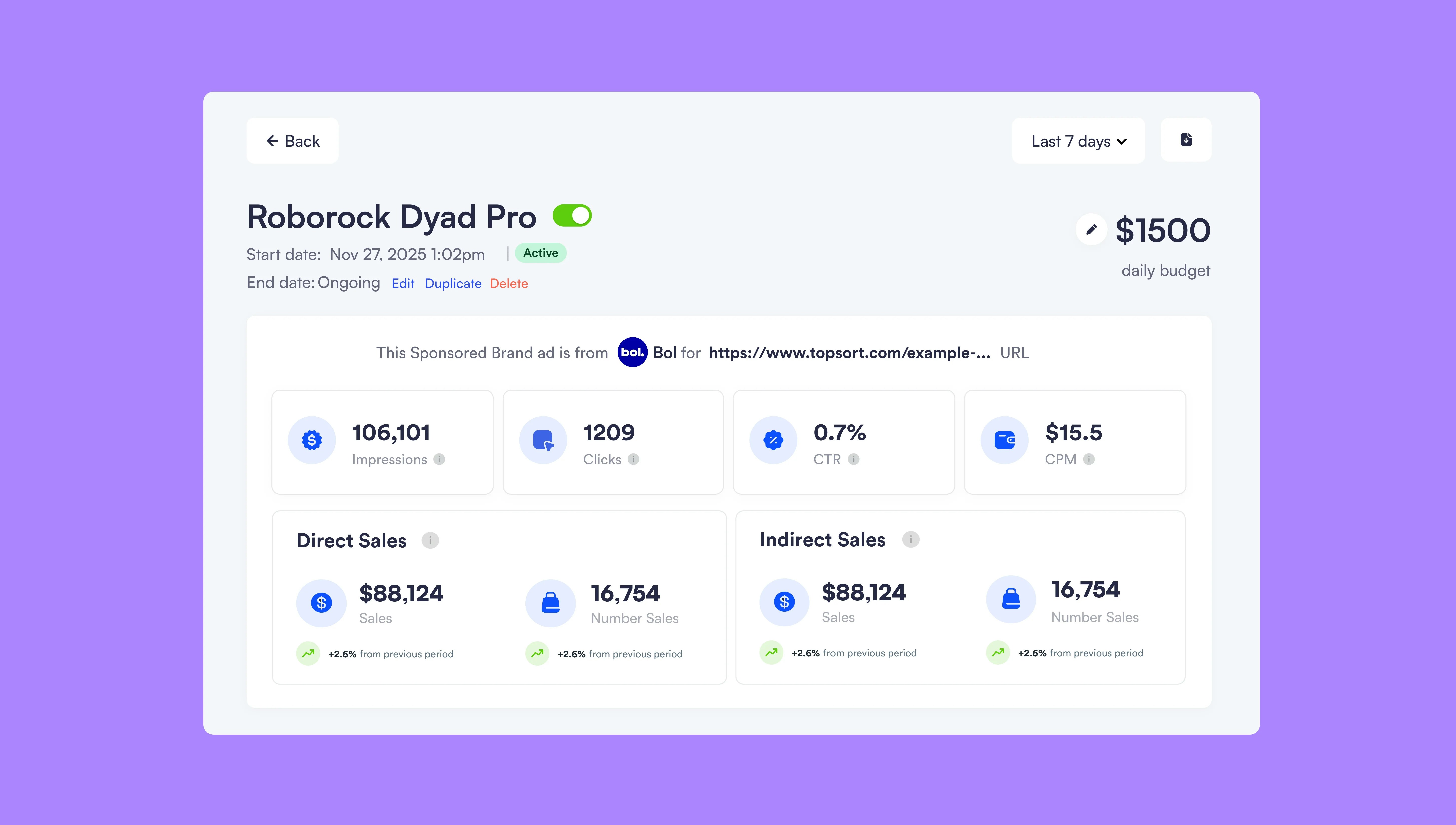 The Sponsored Brands campaign details page now includes a download button that exports performance metrics to CSV format. This brings Sponsored Brands in line with Sponsored Listings and Banner campaigns, which already offered data export.
Previously, users had to manually copy data or take screenshots to analyze Sponsored Brands performance outside the dashboard.
## What You Can Do With It
Export to spreadsheets or BI tools to combine with other marketing data and calculate comprehensive ROI. Download on a schedule to maintain historical records or feed into automated reporting workflows. Export data from all campaign types to compare performance across Sponsored Brands, Listings, and Banners in unified analysis.
Look for the download button on any Sponsored Brands campaign details page. The exported CSV matches the date range and filters currently applied in your dashboard view, and is available to both marketplace and vendor users.
The Sponsored Brands campaign details page now includes a download button that exports performance metrics to CSV format. This brings Sponsored Brands in line with Sponsored Listings and Banner campaigns, which already offered data export.
Previously, users had to manually copy data or take screenshots to analyze Sponsored Brands performance outside the dashboard.
## What You Can Do With It
Export to spreadsheets or BI tools to combine with other marketing data and calculate comprehensive ROI. Download on a schedule to maintain historical records or feed into automated reporting workflows. Export data from all campaign types to compare performance across Sponsored Brands, Listings, and Banners in unified analysis.
Look for the download button on any Sponsored Brands campaign details page. The exported CSV matches the date range and filters currently applied in your dashboard view, and is available to both marketplace and vendor users.