> ## Documentation Index
> Fetch the complete documentation index at: https://docs.topsort.com/llms.txt
> Use this file to discover all available pages before exploring further.
# Sponsored Brands: Multi-Slot Campaigns
> Manage multiple Sponsored Brand placements within a single campaign for streamlined operations
export const ChangelogActions = () => {
return <>
;
};
December 30, 2025
Ad Platform
Improvement
**Why It's Important**
Managing multiple Sponsored Brands placements previously required creating separate campaigns for each slot. This created operational overhead when the same brand needed to appear across multiple placements, forcing analysts to manually duplicate campaigns and update settings individually across each one.
Sponsored Brands campaigns now support multiple slot selections within a single campaign. Select multiple placements during campaign creation, and manage them together with shared budget, scheduling, and targeting settings.
## The Problem
When activating Sponsored Brands across multiple placements for the same advertiser, each slot required its own dedicated campaign. This meant:
* Manually creating separate campaigns for each placement
* Updating budget, end dates, and targeting across multiple campaigns individually
* Managing a cluttered campaign list as the number of placements grew
* No way to duplicate campaign configurations across slots
Banner campaigns already supported multiple placements within a single campaign, but Sponsored Brands lacked this capability.
## The Solution
Sponsored Brands campaigns now allow multiple slot selections during campaign creation. After selecting a template, choose from all eligible slots that share compatible product requirements. All selected slots inherit the same targeting, creative configuration, and campaign settings.
## How It Works
Budget, scheduling, and targeting settings apply to all slots within the campaign. Change a setting once, and it updates across all placements automatically.
## Use Cases
**Multi-Placement Brand Campaigns**: Activate a brand across homepage, category, and search placements in a single campaign. Manage budget allocation and scheduling from one location instead of coordinating across separate campaigns.
**Seasonal Campaign Management**: Launch promotional campaigns across all available placements simultaneously. When the promotion ends, update the end date once rather than editing multiple campaigns.
Multiple slot support for Sponsored Brands campaigns is now available in the Admin Dashboard. Existing single-slot campaigns continue to work as before, and you can add additional slots when editing campaigns.
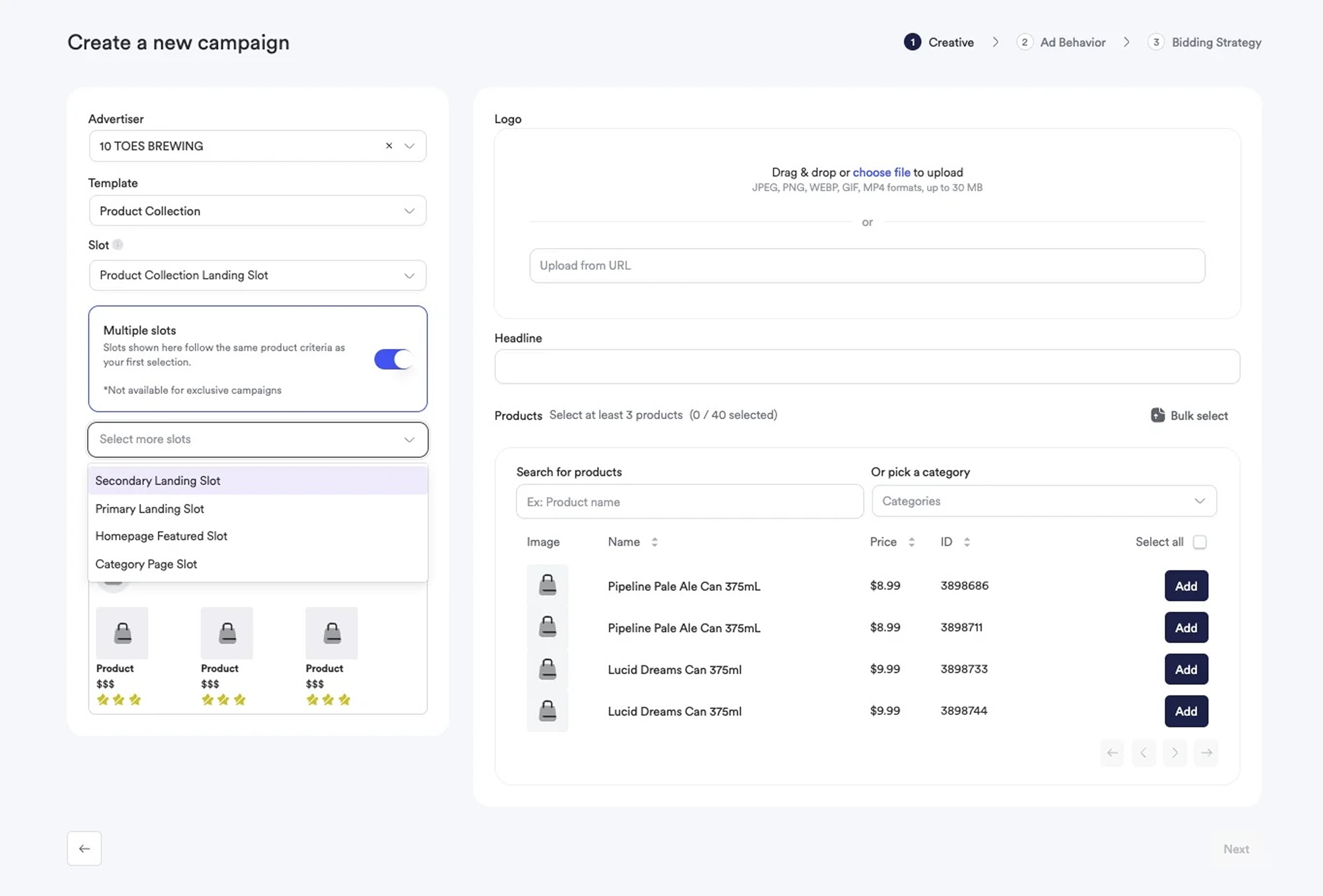 Sponsored Brands campaigns now support multiple slot selections within a single campaign. Select multiple placements during campaign creation, and manage them together with shared budget, scheduling, and targeting settings.
## The Problem
When activating Sponsored Brands across multiple placements for the same advertiser, each slot required its own dedicated campaign. This meant:
* Manually creating separate campaigns for each placement
* Updating budget, end dates, and targeting across multiple campaigns individually
* Managing a cluttered campaign list as the number of placements grew
* No way to duplicate campaign configurations across slots
Banner campaigns already supported multiple placements within a single campaign, but Sponsored Brands lacked this capability.
## The Solution
Sponsored Brands campaigns now allow multiple slot selections during campaign creation. After selecting a template, choose from all eligible slots that share compatible product requirements. All selected slots inherit the same targeting, creative configuration, and campaign settings.
## How It Works
Budget, scheduling, and targeting settings apply to all slots within the campaign. Change a setting once, and it updates across all placements automatically.
## Use Cases
**Multi-Placement Brand Campaigns**: Activate a brand across homepage, category, and search placements in a single campaign. Manage budget allocation and scheduling from one location instead of coordinating across separate campaigns.
**Seasonal Campaign Management**: Launch promotional campaigns across all available placements simultaneously. When the promotion ends, update the end date once rather than editing multiple campaigns.
Multiple slot support for Sponsored Brands campaigns is now available in the Admin Dashboard. Existing single-slot campaigns continue to work as before, and you can add additional slots when editing campaigns.
Sponsored Brands campaigns now support multiple slot selections within a single campaign. Select multiple placements during campaign creation, and manage them together with shared budget, scheduling, and targeting settings.
## The Problem
When activating Sponsored Brands across multiple placements for the same advertiser, each slot required its own dedicated campaign. This meant:
* Manually creating separate campaigns for each placement
* Updating budget, end dates, and targeting across multiple campaigns individually
* Managing a cluttered campaign list as the number of placements grew
* No way to duplicate campaign configurations across slots
Banner campaigns already supported multiple placements within a single campaign, but Sponsored Brands lacked this capability.
## The Solution
Sponsored Brands campaigns now allow multiple slot selections during campaign creation. After selecting a template, choose from all eligible slots that share compatible product requirements. All selected slots inherit the same targeting, creative configuration, and campaign settings.
## How It Works
Budget, scheduling, and targeting settings apply to all slots within the campaign. Change a setting once, and it updates across all placements automatically.
## Use Cases
**Multi-Placement Brand Campaigns**: Activate a brand across homepage, category, and search placements in a single campaign. Manage budget allocation and scheduling from one location instead of coordinating across separate campaigns.
**Seasonal Campaign Management**: Launch promotional campaigns across all available placements simultaneously. When the promotion ends, update the end date once rather than editing multiple campaigns.
Multiple slot support for Sponsored Brands campaigns is now available in the Admin Dashboard. Existing single-slot campaigns continue to work as before, and you can add additional slots when editing campaigns.