> ## Documentation Index
> Fetch the complete documentation index at: https://docs.topsort.com/llms.txt
> Use this file to discover all available pages before exploring further.
# View Banner Ads Details
export const LastUpdated = ({date, lang = "en"}) => {
const translations = {
en: "Last updated:",
es: "Última actualización:",
pt: "Última atualização:",
fr: "Dernière mise à jour:",
de: "Zuletzt aktualisiert:"
};
const label = translations[lang] || translations.en;
return <>
;
};
You can check how your banner campaign is performing in the campaign
dashboard.
## Campaign Overview
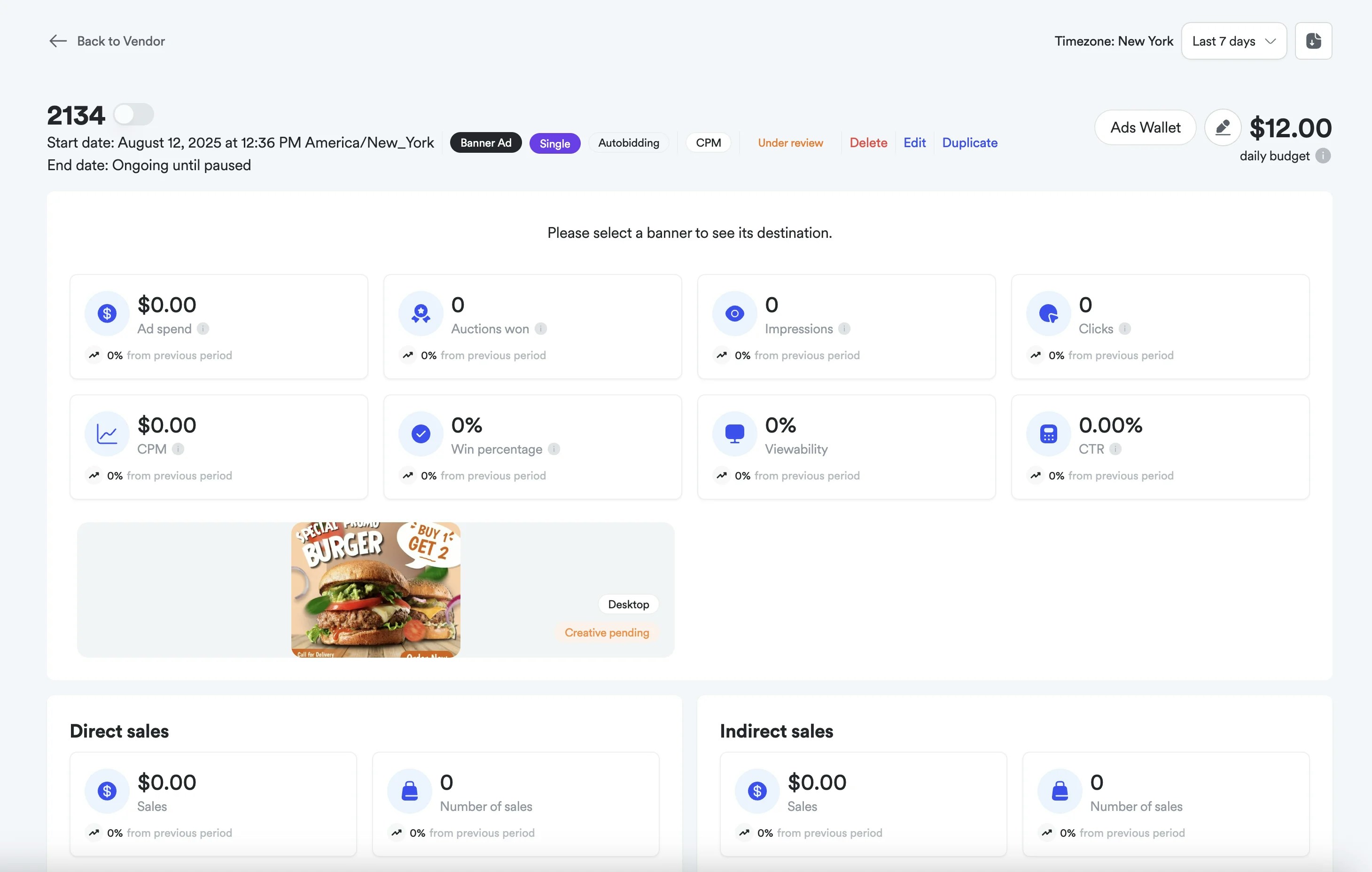
The banner campaign details page provides a comprehensive view of your
campaign's performance and settings. When a campaign is newly created, the
dashboard shows the basic campaign information with minimal performance data
until the campaign begins generating impressions and clicks.
## Campaign Management Features
### Campaign Header Information
* **Campaign ID**: Unique identifier (e.g., 2134) for tracking and reference
* **Campaign Duration**: Start date, end date, and current status
* **Campaign Type**: Banner Ad with bidding strategy (Single, Autobidding, CPM)
* **Budget Management**: View and edit daily budget allocation (\$12.00 shown)
* **Campaign Actions**: Edit, Duplicate, Delete, and status management options
### Creative Asset Management
View and manage your banner creative:
* **Banner Creative Preview**: Visual display of the banner ad design
* **Device Targeting**: Desktop/mobile format specifications
* **Creative Status**: Shows if creative is pending approval or active
* **Destination Settings**: Landing page URL configuration for banner clicks
## Performance Metrics Dashboard
### Core Campaign KPIs
The dashboard displays eight key performance indicators:
**Financial Metrics**:
* **Ad Spend**: Total campaign budget spent
* **CPM**: Cost per thousand impressions with percentage change tracking
**Engagement Metrics**:
* **Auctions Won**: Number of successful bid placements
* **Impressions**: Total banner views with change indicators
* **Clicks**: Number of banner clicks with performance tracking
* **CTR**: Click-through rate percentage with period-over-period comparison
**Performance Indicators**:
* **Win Percentage**: Auction success rate
* **Viewability**: Percentage of impressions that were viewable (IAB/MRC standard: 50% of pixels visible for 1+ continuous second)
### Sales Attribution Tracking
**Direct Sales**:
* **Sales Revenue**: Direct purchases attributed to banner clicks
* **Number of Sales**: Count of direct conversions
**Indirect Sales**:
* **Sales Revenue**: View-through conversions and assisted sales
* **Number of Sales**: Count of indirect attribution events
### Attribution and Billing Standards
Per IAB/MRC Retail Media Measurement Guidelines, Topsort uses **Viewable
Impressions** for:
* **Attribution of outcomes**: Only impressions meeting MRC viewability standards (50% of pixels visible for 1+ continuous second) are eligible for attribution
* **Campaign billing**: Advertisers are charged based on viewable impressions only
* **Performance reporting**: ROAS and conversion metrics calculated using viewable impressions as the baseline
## Performance Data Development
### Initial Campaign State
When a banner campaign is newly created, the dashboard displays:
* Campaign basic information and budget settings
* Banner creative preview with pending approval status
* Zero performance metrics across all KPIs
* Baseline data collection setup
### Performance Tracking Evolution
As the campaign progresses, metrics populate with:
* **Real-time Updates**: Impression, click, and spend data
* **Attribution Windows**: Direct and indirect sales tracking
* **Comparative Analysis**: Period-over-period performance changes
* **Viewability Metrics**: Ad visibility and engagement quality
Banner campaigns require creative approval before going live. The "Creative
pending" status indicates the banner is under review. Once approved, the
campaign will begin serving and collecting performance data.
***