> ## Documentation Index
> Fetch the complete documentation index at: https://docs.topsort.com/llms.txt
> Use this file to discover all available pages before exploring further.

# Configure a Banner Slot

> How to configure slots for banners

export const LastUpdated = ({date, lang = "en"}) => {
  const translations = {
    en: "Last updated:",
    es: "Última actualización:",
    pt: "Última atualização:",
    fr: "Dernière mise à jour:",
    de: "Zuletzt aktualisiert:"
  };
  const label = translations[lang] || translations.en;
  return <>
<style>{`
.last-updated-component {
display: inline-flex;
align-items: center;
gap: 8px;
padding: 10px 16px;
border-radius: 8px;
margin-top: 12px;
margin-bottom: 16px;
font-size: 14px;
background-color: rgba(0, 0, 0, 0.05);
border: 1px solid rgba(0, 0, 0, 0.12);
color: rgba(0, 0, 0, 0.75);
line-height: 1;
}

        .last-updated-component svg {
          flex-shrink: 0;
          vertical-align: middle;
        }

        .last-updated-component span {
          display: inline-flex !important;
          align-items: center !important;
          line-height: 1 !important;
        }

        [data-theme="dark"] .last-updated-component {
          background-color: #3a3a3a;
          border: 2px solid #888888;
          color: #ffffff;
        }

        [data-theme="dark"] .last-updated-component svg {
          stroke: #ffffff;
        }
      `}</style>
      <div className="last-updated-component">
        <svg width="16" height="16" viewBox="0 0 24 24" fill="none" stroke="currentColor" strokeWidth="2" strokeLinecap="round" strokeLinejoin="round">
          <circle cx="12" cy="12" r="10" />
          <polyline points="12 6 12 12 16 14" />
        </svg>
        <span>
          <strong style={{
    fontWeight: 600
  }}>{label}</strong> 
          <time dateTime={date}>{date}</time>
        </span>
      </div>
    </>;
};

<div style={{textAlign: 'justify', marginBottom: '1.5rem'}}>
  Each banner slot represents one placement of your inventory, also being the placeholders for banners.
</div>

## Viewing all created slots

<div style={{textAlign: 'justify', marginBottom: '1.5rem'}}>
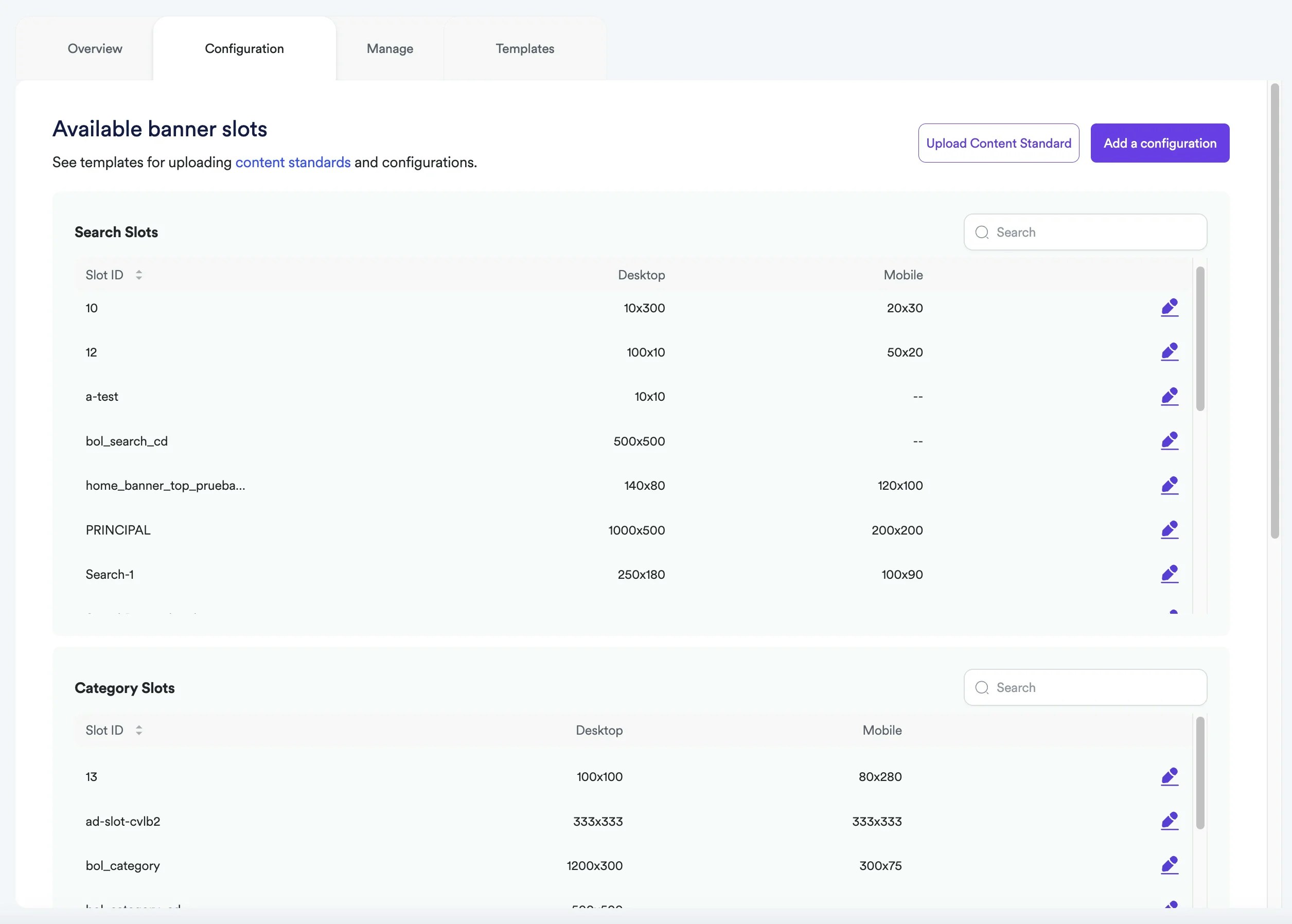
  The “Configuration” page displays all configurations made underneath its corresponding placement (landing page, categories, or search).
</div>

<div style={{textAlign: 'justify', marginBottom: '1.5rem'}}>
  **<Frame>  <img src="https://mintcdn.com/topsort/FVdFH6-GAInpFZWG/images/knowledge-base/ad-platform-banners-banner-slots-configuration-v2.webp?fit=max&auto=format&n=FVdFH6-GAInpFZWG&q=85&s=0c9300b92718ca295a841162b1f9b519" alt="Configuration screen showing for banner slots." width="2511" height="1796" data-path="images/knowledge-base/ad-platform-banners-banner-slots-configuration-v2.webp" /></Frame>**
</div>

### How to create new slots

<div style={{textAlign: 'justify', marginBottom: '1.5rem'}}>
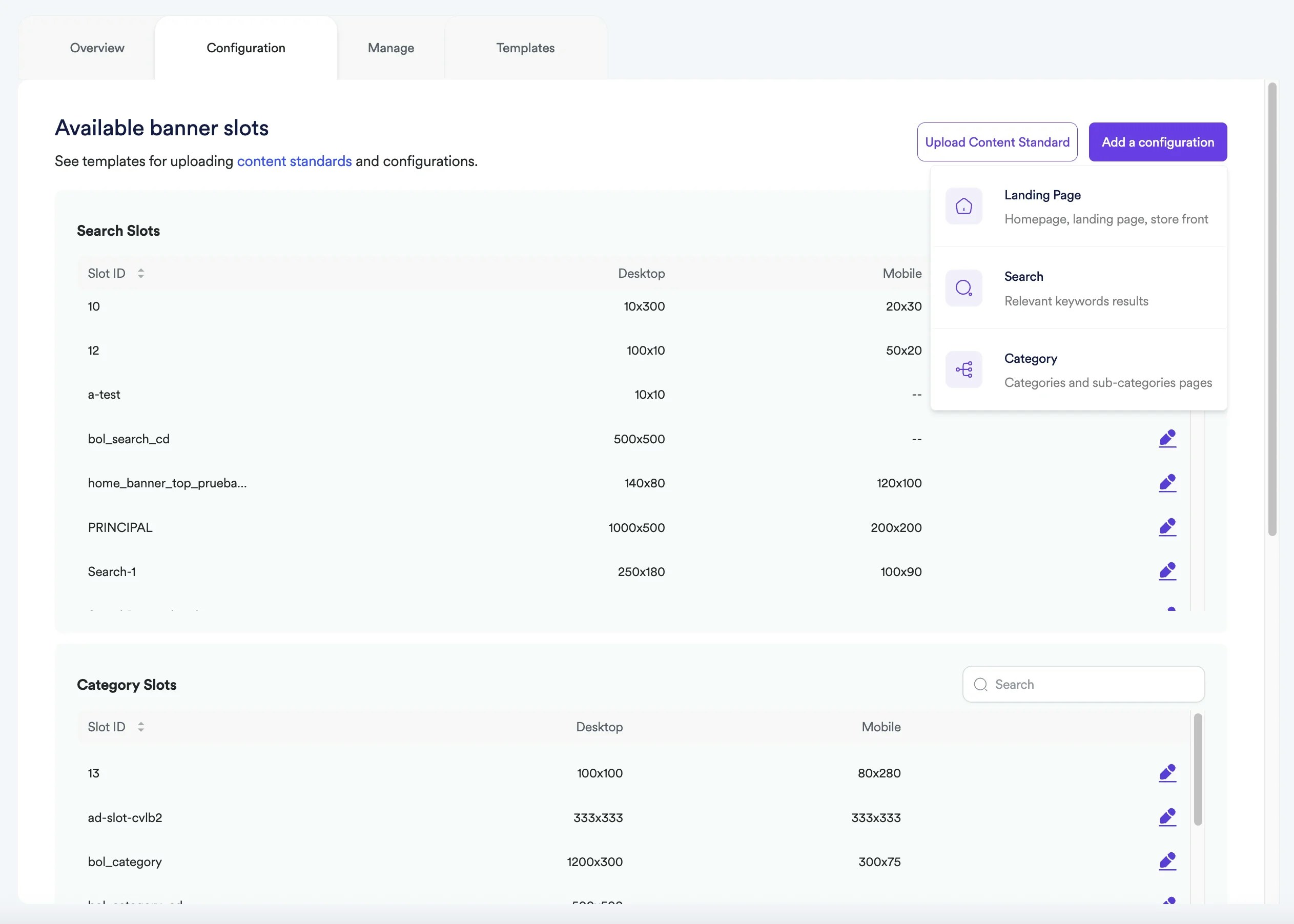
  You can create new configurations by clicking the “Add a Configuration” button. Here, you can choose between Landing Page, Search and Category options. You can then either manually input the details or bulk upload multiple slots. You can create separate banner ads experiences, for mobile, desktop, and apps.
</div>

<div style={{textAlign: 'justify', marginBottom: '1.5rem'}}>
  **<Frame>  <img src="https://mintcdn.com/topsort/FVdFH6-GAInpFZWG/images/knowledge-base/ad-platform-banners-banner-slots-configuration-2-v2.webp?fit=max&auto=format&n=FVdFH6-GAInpFZWG&q=85&s=02169a87642311e433aa996955e9c48d" alt="Adding new banner slot configuration for landing pages." width="2525" height="1803" data-path="images/knowledge-base/ad-platform-banners-banner-slots-configuration-2-v2.webp" /></Frame>**
</div>

## Landing Pages

<div style={{textAlign: 'justify', marginBottom: '1.5rem'}}>
  A landing page can contain any number of slots. You can even create multiple slots in the same sections, to create carousels or sliders with banner ads.
</div>

<div style={{textAlign: 'justify', marginBottom: '1.5rem'}}>
  For each slot that belongs to a landing page, you should provide
</div>

<div style={{textAlign: 'justify', marginBottom: '1.5rem'}}>
  * **Landing Page Link:** The URL of the page the slot is created at.
  * **Landing Page Name:** The name of the landing page that the slot belongs to.
  * **SlotID:** A unique identifier that can contain alphanumeric characters and the following symbols: !"#\$%&'()\*+,-.\_/:;\<>?@\[]^\{}\~=
  * **Width:** The width of the image of the slot.
  * **Height:** The height of the image of the slot.
</div>

### Examples

<div style={{textAlign: 'justify', marginBottom: '1.5rem'}}>
  <table>
    <tbody>
      <tr>
        <td>
          <p>
            <strong>Landing Page Link</strong>
          </p>
        </td>

        <td>
          <p>
            <strong>Landing Page Name</strong>
          </p>
        </td>

        <td>
          <p>
            <strong>SlotID</strong>
          </p>
        </td>

        <td>
          <p>
            <strong>Desktop Width</strong>
          </p>
        </td>

        <td>
          <p>
            <strong>Desktop Height</strong>
          </p>
        </td>

        <td>
          <p>
            <strong>Mobile Width</strong>
          </p>
        </td>

        <td>
          <p>
            <strong>Mobile Height</strong>
          </p>
        </td>
      </tr>

      <tr>
        <td>
          <p>
            <a href="http://example.com/home">[http://example.com/home](http://example.com/home)</a>
          </p>
        </td>

        <td>
          <p>Homepage Christmas</p>
        </td>

        <td>
          <p>top-slot-1</p>
        </td>

        <td>
          <p>100</p>
        </td>

        <td>
          <p>50</p>
        </td>

        <td>
          <p>40</p>
        </td>

        <td>
          <p>40</p>
        </td>
      </tr>

      <tr>
        <td>
          <p>
            <a href="http://example.com/home">[http://example.com/home](http://example.com/home)</a>
          </p>
        </td>

        <td>
          <p>Homepage Christmas</p>
        </td>

        <td>
          <p>right-slot-2</p>
        </td>

        <td>
          <p>50</p>
        </td>

        <td>
          <p>200</p>
        </td>

        <td>
          <p />
        </td>

        <td>
          <p />
        </td>
      </tr>
    </tbody>
  </table>
</div>

## Category and Search

<div style={{textAlign: 'justify', marginBottom: '1.5rem'}}>
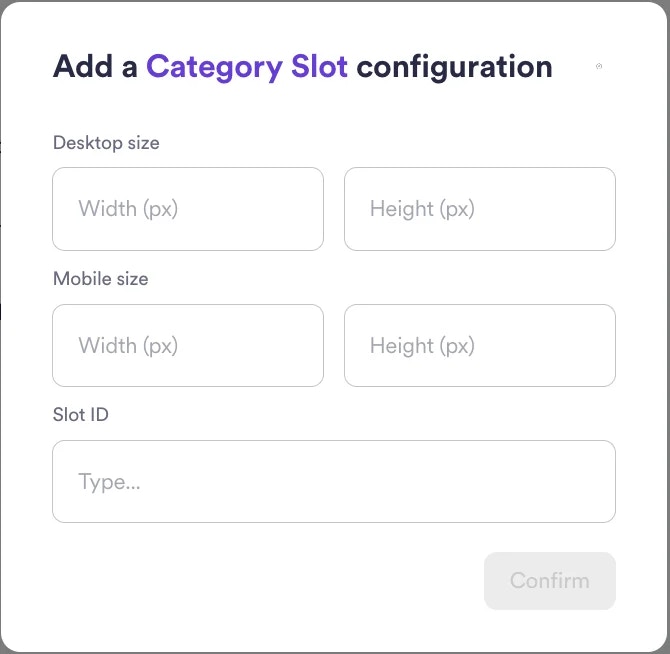
  With Topsort you can serve banner ads targeting certain categories and keywords. Category and Search ads have very high relevance when configured the right way, increasing their demand and value. For example, you can create a banner ad slot on the “Hiking boots” category page, and only give access to outdoor activity brands.
</div>

<Frame>
  <img src="https://mintcdn.com/topsort/FVdFH6-GAInpFZWG/images/knowledge-base/ad-platform-banners-banner-slots-category-configuration.webp?fit=max&auto=format&n=FVdFH6-GAInpFZWG&q=85&s=e9868f891b39f28b53b011d5eaca95ad" alt="Example of category slot configuration." width="670" height="654" data-path="images/knowledge-base/ad-platform-banners-banner-slots-category-configuration.webp" />
</Frame>

***

<LastUpdated date="2025-11-18" />