> ## Documentation Index
> Fetch the complete documentation index at: https://docs.topsort.com/llms.txt
> Use this file to discover all available pages before exploring further.

# Creating Products

export const LastUpdated = ({date, lang = "en"}) => {
  const translations = {
    en: "Last updated:",
    es: "Última actualización:",
    pt: "Última atualização:",
    fr: "Dernière mise à jour:",
    de: "Zuletzt aktualisiert:"
  };
  const label = translations[lang] || translations.en;
  return <>
<style>{`
.last-updated-component {
display: inline-flex;
align-items: center;
gap: 8px;
padding: 10px 16px;
border-radius: 8px;
margin-top: 12px;
margin-bottom: 16px;
font-size: 14px;
background-color: rgba(0, 0, 0, 0.05);
border: 1px solid rgba(0, 0, 0, 0.12);
color: rgba(0, 0, 0, 0.75);
line-height: 1;
}

        .last-updated-component svg {
          flex-shrink: 0;
          vertical-align: middle;
        }

        .last-updated-component span {
          display: inline-flex !important;
          align-items: center !important;
          line-height: 1 !important;
        }

        [data-theme="dark"] .last-updated-component {
          background-color: #3a3a3a;
          border: 2px solid #888888;
          color: #ffffff;
        }

        [data-theme="dark"] .last-updated-component svg {
          stroke: #ffffff;
        }
      `}</style>
      <div className="last-updated-component">
        <svg width="16" height="16" viewBox="0 0 24 24" fill="none" stroke="currentColor" strokeWidth="2" strokeLinecap="round" strokeLinejoin="round">
          <circle cx="12" cy="12" r="10" />
          <polyline points="12 6 12 12 16 14" />
        </svg>
        <span>
          <strong style={{
    fontWeight: 600
  }}>{label}</strong> 
          <time dateTime={date}>{date}</time>
        </span>
      </div>
    </>;
};

<div style={{ textAlign: "justify", marginBottom: "1.5rem" }}>
  Marketplace admins can upload products directly within the Ad Platform. This
  is especially convenient in sandboxed environments where API integrations or
  catalog feeds may not be available.
</div>

## How It Works

<div style={{ textAlign: "justify", marginBottom: "1.5rem" }}>
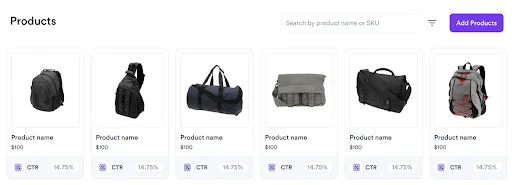
  Admins can access product creation functionalities by going to the
  **Products** tab in the marketplace dashboard.
</div>

<Frame>
  <img src="https://mintcdn.com/topsort/uSrfRB5jaD2RxnFe/images/knowledge-base/dashboard_products.webp?fit=max&auto=format&n=uSrfRB5jaD2RxnFe&q=85&s=c573e677c29cc132de59191826671f7a" alt="dashboard products" width="512" height="185" data-path="images/knowledge-base/dashboard_products.webp" />
</Frame>

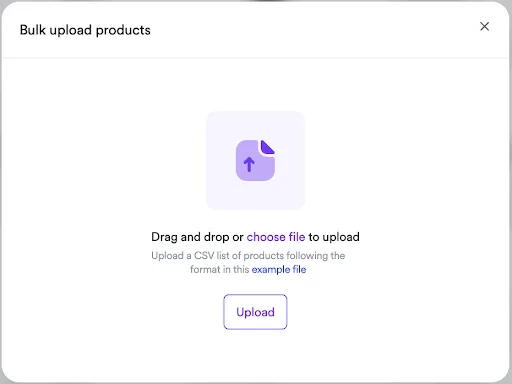
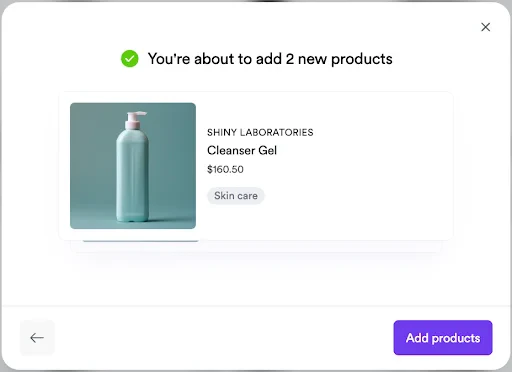
Products can be uploaded by submitting a CSV file. All CSV file samples available at /en/ad-platform/listings/product-feed/ can be used. Once uploaded, products are immediately available for use in sponsored listing campaigns.
<Frame>
  <img src="https://mintcdn.com/topsort/uSrfRB5jaD2RxnFe/images/knowledge-base/bulk_upload_products_step_1.webp?fit=max&auto=format&n=uSrfRB5jaD2RxnFe&q=85&s=cc84db67e482da5b8810d87af723fa39" alt="bulk upload products step 1" width="512" height="384" data-path="images/knowledge-base/bulk_upload_products_step_1.webp" />
</Frame>

<Frame>
  <img src="https://mintcdn.com/topsort/uSrfRB5jaD2RxnFe/images/knowledge-base/bulk_upload_products_step_2.webp?fit=max&auto=format&n=uSrfRB5jaD2RxnFe&q=85&s=fd02ecbca6999733f6088e4f9451fa40" alt="bulk upload products step 1" width="512" height="372" data-path="images/knowledge-base/bulk_upload_products_step_2.webp" />
</Frame>

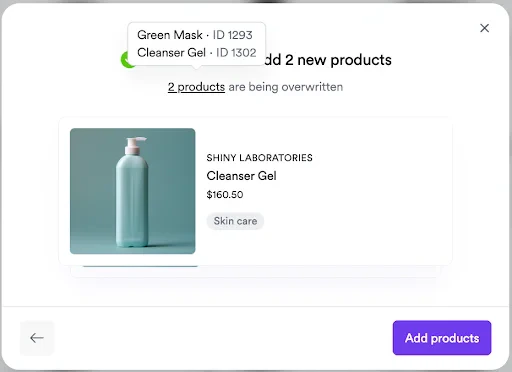
The system supports upsert operations for existing products. This means entries will be updated, and new ones will be added, ensuring data consistency.
<Frame>
  <img src="https://mintcdn.com/topsort/uSrfRB5jaD2RxnFe/images/knowledge-base/bulk_upload_products_step_3.webp?fit=max&auto=format&n=uSrfRB5jaD2RxnFe&q=85&s=894ec8c8cea25b80edae9fc0543712d8" alt="bulk upload products step 1" width="512" height="372" data-path="images/knowledge-base/bulk_upload_products_step_3.webp" />
</Frame>

***

<LastUpdated date="2025-11-18" />
