> ## Documentation Index
> Fetch the complete documentation index at: https://docs.topsort.com/llms.txt
> Use this file to discover all available pages before exploring further.
# View Campaign Details
export const LastUpdated = ({date, lang = "en"}) => {
const translations = {
en: "Last updated:",
es: "Última actualización:",
pt: "Última atualização:",
fr: "Dernière mise à jour:",
de: "Zuletzt aktualisiert:"
};
const label = translations[lang] || translations.en;
return <>
;
};
You can check how your sponsored listing campaign is performing in the
campaign dashboard.
On this page, you can see performance numbers (KPIs) at the top for a time
period you select, along with a graph below showing trends. You can also see
the products included in your campaign by scrolling through the product
images. When you point your mouse over a product image, the performance
numbers will update to show how just that product is doing.
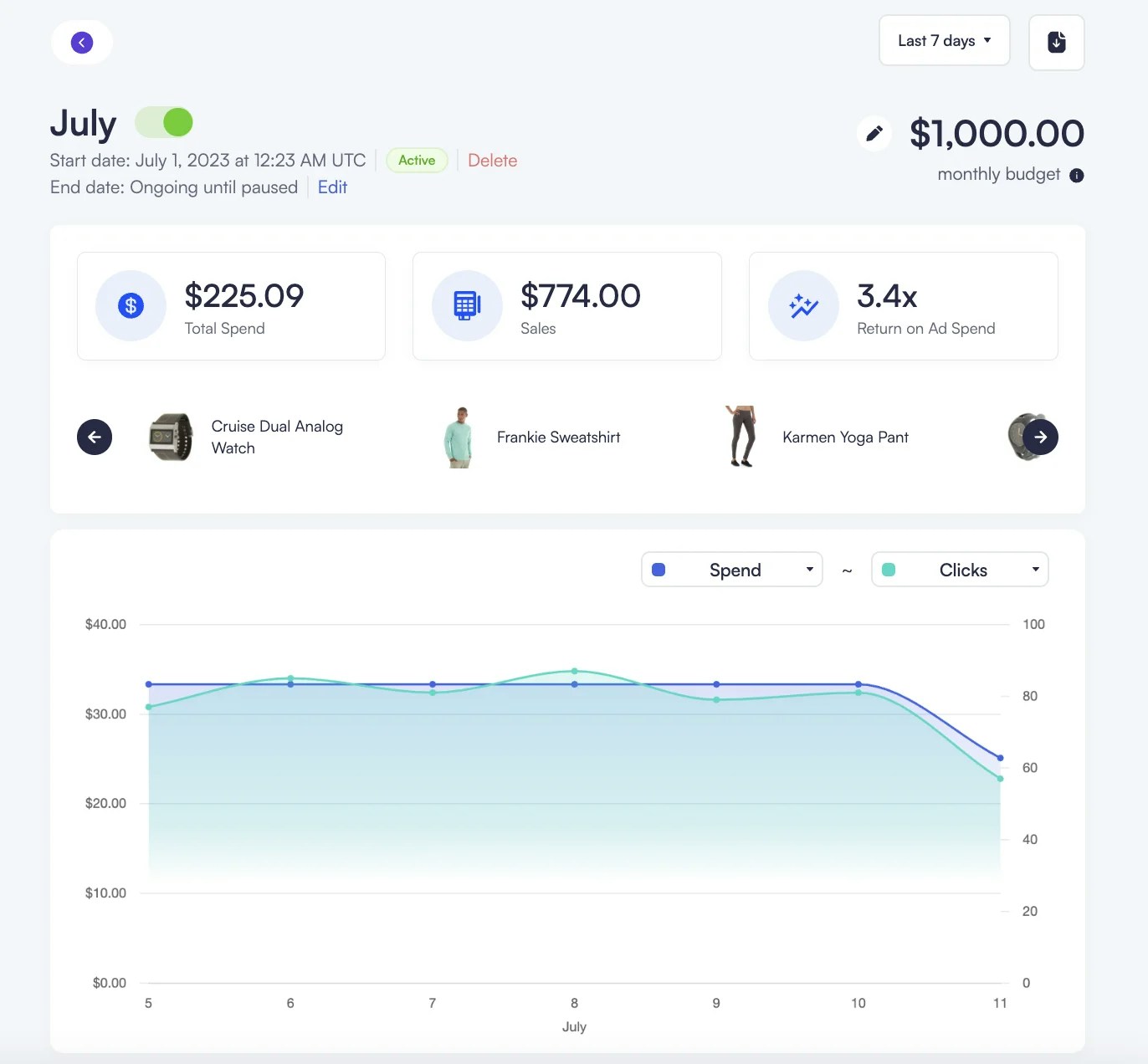 You can quickly turn the entire campaign on or off using the green switch, or change the campaign budget by clicking the pencil icon. Below the graph, there is a table listing the products being promoted and their main performance numbers. In this table, you can use the toggle switch next to a product to remove it from the campaign or add new products whenever you like.
If a product is set to active: “false” via API or product feed updates due to
lack of stock, it's automatically switched off in the campaign dashboard.
Refer to the [Catalog
Synchronizatio](/en/knowledge-base/ad-platform/catalog-management/catalog-synchronization/)
section for more information.
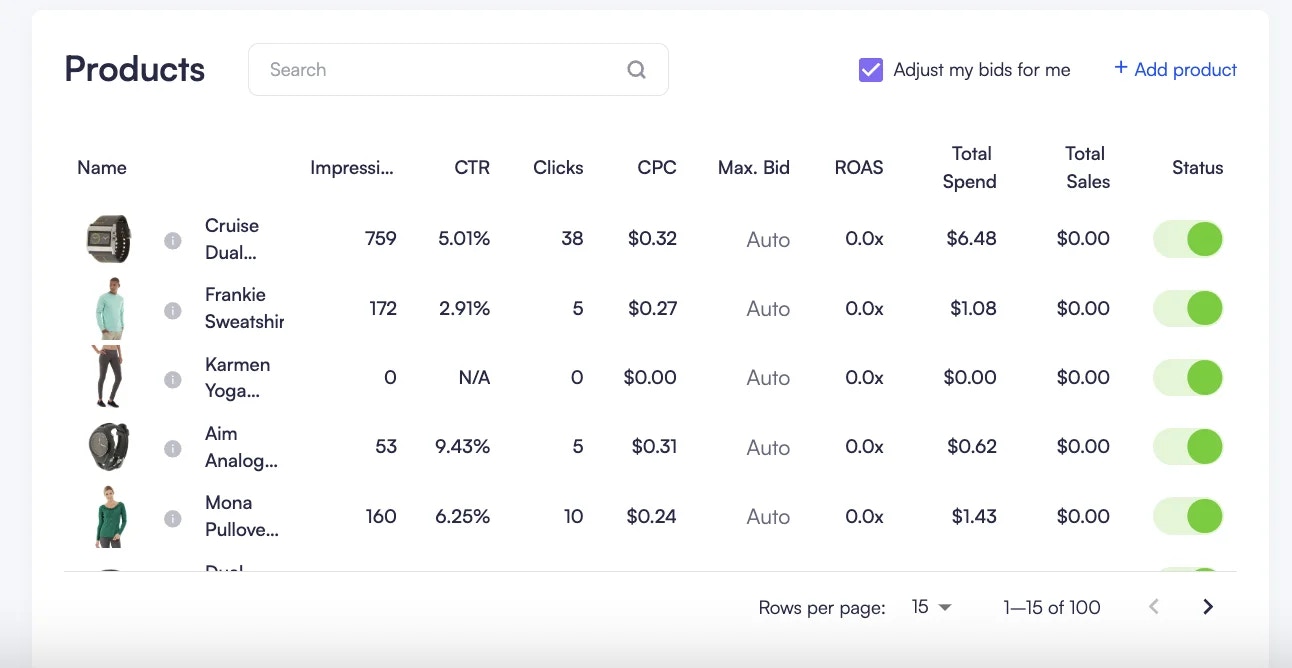
You can quickly turn the entire campaign on or off using the green switch, or change the campaign budget by clicking the pencil icon. Below the graph, there is a table listing the products being promoted and their main performance numbers. In this table, you can use the toggle switch next to a product to remove it from the campaign or add new products whenever you like.
If a product is set to active: “false” via API or product feed updates due to
lack of stock, it's automatically switched off in the campaign dashboard.
Refer to the [Catalog
Synchronizatio](/en/knowledge-base/ad-platform/catalog-management/catalog-synchronization/)
section for more information.
 ***
***