> ## Documentation Index
> Fetch the complete documentation index at: https://docs.topsort.com/llms.txt
> Use this file to discover all available pages before exploring further.
# View Sponsored Brands Details
export const LastUpdated = ({date, lang = "en"}) => {
const translations = {
en: "Last updated:",
es: "Última actualización:",
pt: "Última atualização:",
fr: "Dernière mise à jour:",
de: "Zuletzt aktualisiert:"
};
const label = translations[lang] || translations.en;
return <>
;
};
You can check how your sponsored brands campaign is performing in the campaign
dashboard.
## Campaign Overview
The sponsored brands campaign details page provides a comprehensive view of
your campaign's performance and settings. When a campaign is newly created,
the dashboard shows the basic campaign information with minimal performance
data until the campaign begins generating impressions and clicks.
## Campaign Management Features
### Campaign Status Control
* **Campaign Toggle**: Use the green switch to quickly turn the entire campaign on or off
* **Budget Management**: Click the pencil icon to adjust campaign budget settings
* **Campaign Information**: View campaign name, template type, duration, and current status
### Creative Assets Overview
View all campaign creative components:
* **Brand Logo**: Display of uploaded brand logo
* **Campaign Headline**: Current headline text
* **Additional Creatives**: Videos or additional images used in the campaign
* **Template Type**: Shows which template the campaign uses (Product Collection, Store Spotlight, or Video)
### Product Management
* **Product Selection**: View all products (1-5) included in the campaign
* **Product Status**: Individual toggle switches to activate/deactivate specific products
* **Product Performance**: Individual product metrics when data becomes available
* **Product Links**: Destination URLs for each product in the campaign
## Performance Metrics
### Initial Campaign State
When a sponsored brands campaign is newly created, the dashboard displays:
* Campaign basic information and settings
* Creative asset preview
* Product list with active/inactive status
* Zero or minimal performance data until campaign gains traction
### Performance Data Development
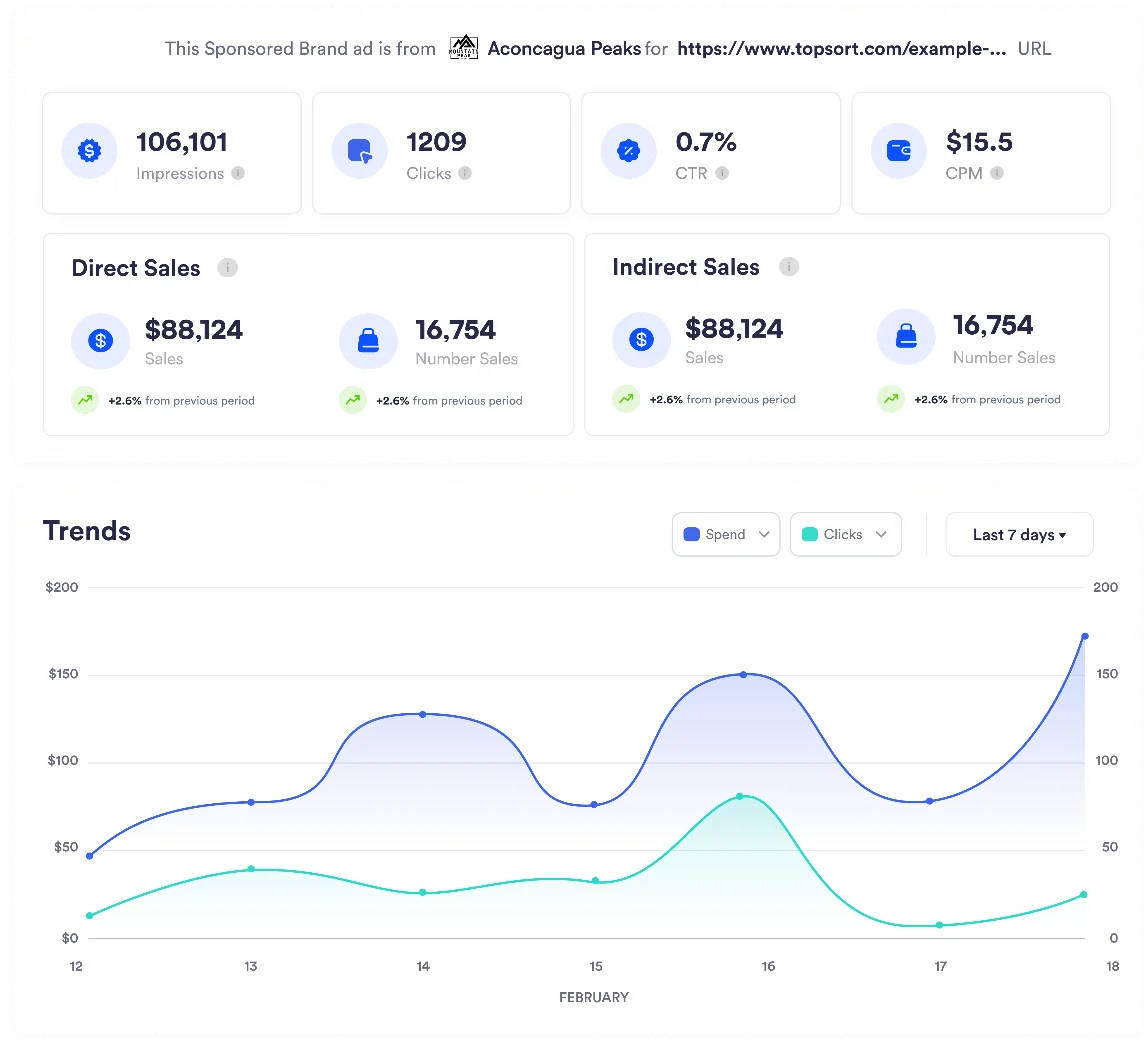
As the campaign progresses, the following metrics become available:
* **Impressions**: Total number of times the sponsored brand ad was shown
* **Clicks**: Number of clicks on the sponsored brand creative or products
* **CTR (Click-Through Rate)**: Percentage of impressions that resulted in clicks
* **Spend**: Total campaign budget spent
* **CPM/CPC**: Cost metrics based on bidding strategy
* **Conversions**: Product purchases attributed to the campaign
If a product is set to active: "false" via API or product feed updates due to
lack of stock, it's automatically switched off in the campaign dashboard.
Refer to the [Catalog
Synchronization](/en/knowledge-base/ad-platform/catalog-management/catalog-synchronization/)
section for more information.
***