> ## Documentation Index
> Fetch the complete documentation index at: https://docs.topsort.com/llms.txt
> Use this file to discover all available pages before exploring further.
# Campaign Management
> Centralized campaign management interface for viewing, filtering, and managing all your Toppie campaigns
export const LastUpdated = ({date, lang = "en"}) => {
const translations = {
en: "Last updated:",
es: "Última actualización:",
pt: "Última atualização:",
fr: "Dernière mise à jour:",
de: "Zuletzt aktualisiert:"
};
const label = translations[lang] || translations.en;
return <>
;
};
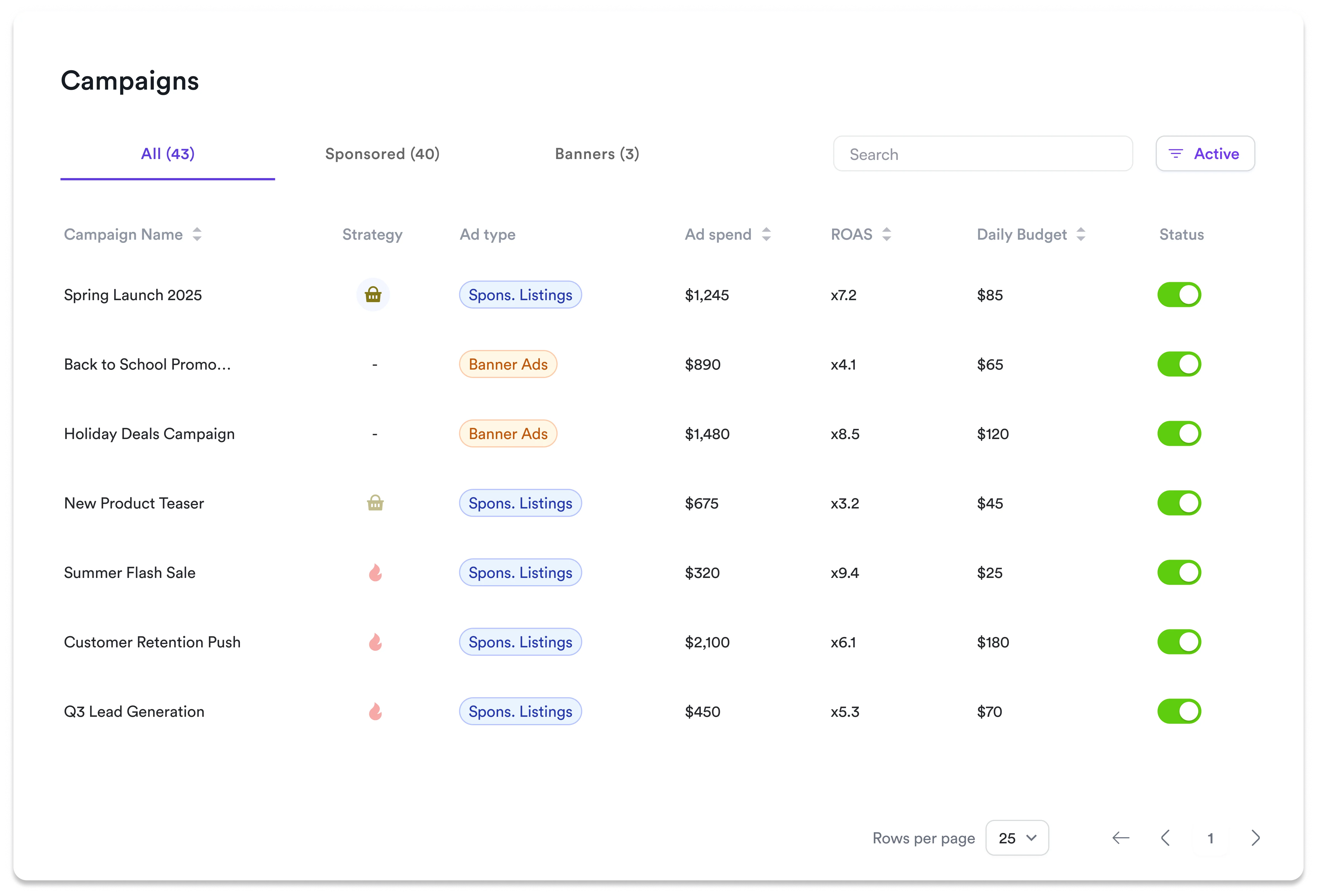
The **Campaigns tab** in Toppie provides a centralized hub for managing all your advertising campaigns across retail media networks. This unified interface streamlines campaign oversight and enables efficient performance monitoring from one dashboard.
 ## Key Features
View all Sponsored Listings and Banner Ads campaigns in one organized interface
Track ad spend, ROAS, and daily budgets with live performance updates
Instantly activate, pause, or modify campaigns without navigating between pages
Filter by campaign type, status, or search by name to find campaigns quickly
Click into any campaign for comprehensive performance data and trend analysis
## Campaign Overview
## Key Features
View all Sponsored Listings and Banner Ads campaigns in one organized interface
Track ad spend, ROAS, and daily budgets with live performance updates
Instantly activate, pause, or modify campaigns without navigating between pages
Filter by campaign type, status, or search by name to find campaigns quickly
Click into any campaign for comprehensive performance data and trend analysis
## Campaign Overview
The Campaigns tab displays essential performance metrics for each campaign:
* **Campaign Name** - Clickable to access detailed analytics
* **Campaign Type** - Sponsored Listings or Banner Ads
* **Status** - Active/Inactive with toggle controls
* **Ad Spend** - Total campaign spend to date
* **ROAS** - Return on advertising spend
* **Daily Budget** - Configured daily spending limit
## Managing Campaigns
Access the **Campaigns** tab from your Toppie dashboard navigation
* Use filter tabs to view **All**, **Sponsored**, or **Banner** campaigns
* Use the search bar to find specific campaigns by name
* Sort by any column for quick insights
Review real-time metrics directly from the list view without drilling into individual campaigns
Toggle campaigns **Active** or **Inactive** using the status controls
Click any campaign name to view comprehensive performance data and modify campaign settings
## Campaign Types
### Sponsored Listings
Traditional product advertising campaigns that promote specific products within search results and category pages across retail partners.
### Banner Ads
Display advertising campaigns that show visual creatives across high-visibility placements on retail partner sites, with product-based targeting.
***
The Campaigns tab centralizes your entire Toppie advertising operation, making it easy to monitor performance and make adjustments across all retail media networks from one location.
***