

Sponsored Brands is an ad format combining a brand logo, creative assets, a headline and multiple products. Its goal is to build brand awareness and help customers discover products.
Create campaigns individually using the steps below, or use Bulk Create to create multiple Sponsored Brands campaigns from a spreadsheet.
Campaign Creation Flow
Sponsored Brands campaigns use a template to define their content and layout.
1
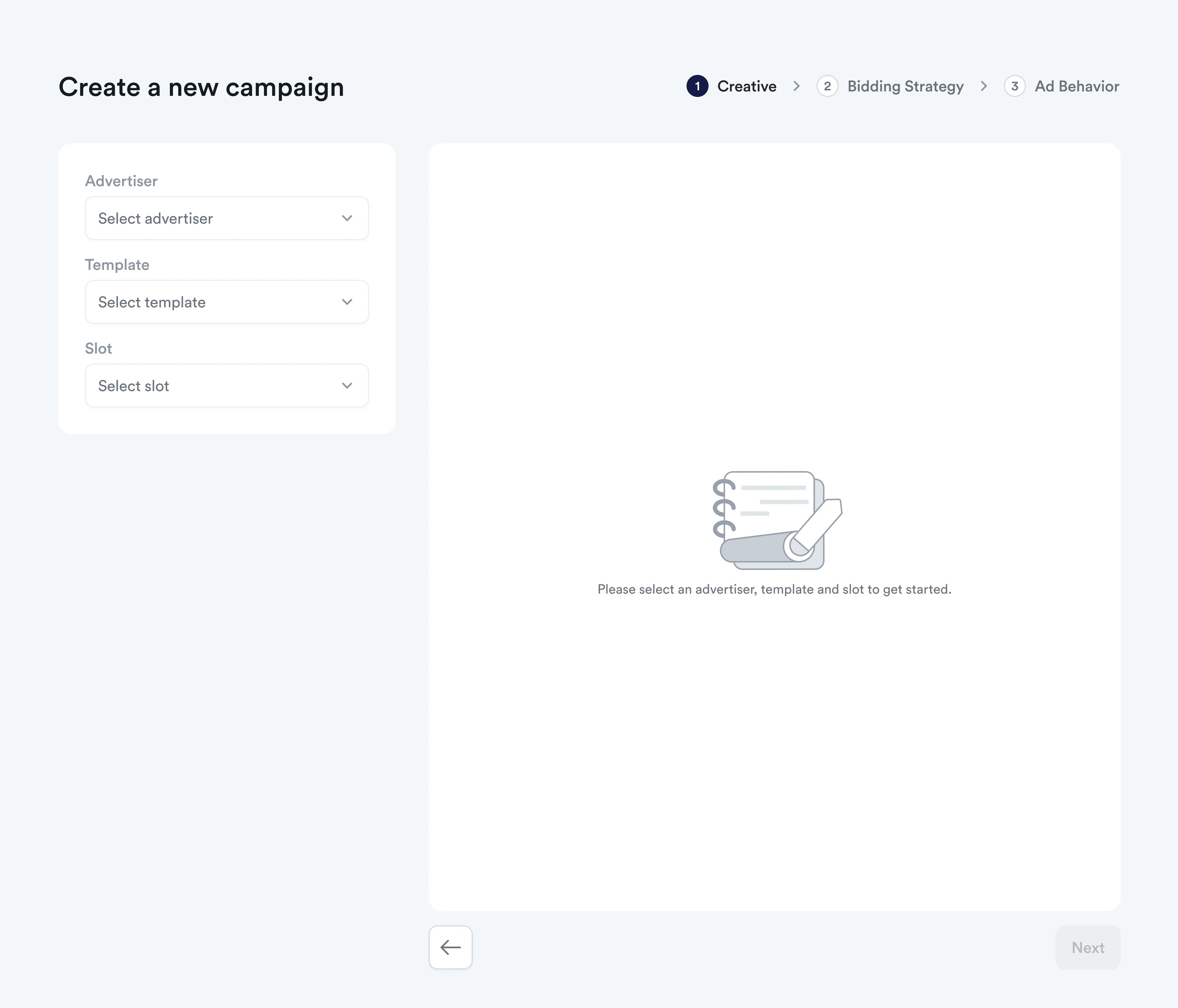
Select Template
Choose a pre-built template or a custom template for your campaign. The pre-built options include:
- Product Collection: Showcase multiple products to help shoppers discover your range.
- Product Highlight: Feature a single product alongside a creative.
- Store Spotlight: Direct shoppers to a store page to build brand awareness.
Custom templates let you define combinations of text fields, image fields, and displayed products to match the Sponsored Brands experience you want to offer.
2
Creative Setup
Configure your brand and creative assets:
- Upload Brand Logo: Add your brand logo following template specifications
- Campaign Headline: Create compelling headlines aligned with your campaign objectives
- Additional Creatives: Upload videos or additional images based on template requirements
- Attach Products: Select products to promote with your creatives
- AI disclosure: Turn on AI Generated or Modified Image if any part of the image was generated or modified using AI. Topsort records this declaration with the creative.
Content Requirements
- Supported formats: JPEG, PNG, WEBP, GIF, MP4
- Max file size: 5MB per creative/video
The creatives, headline and
productId will be returned in the auction
request separately. You can render those elements the way it best fits your
needs in the frontend. Refer to the Sponsored Brands
Auction
section to learn more about auction requests and responses.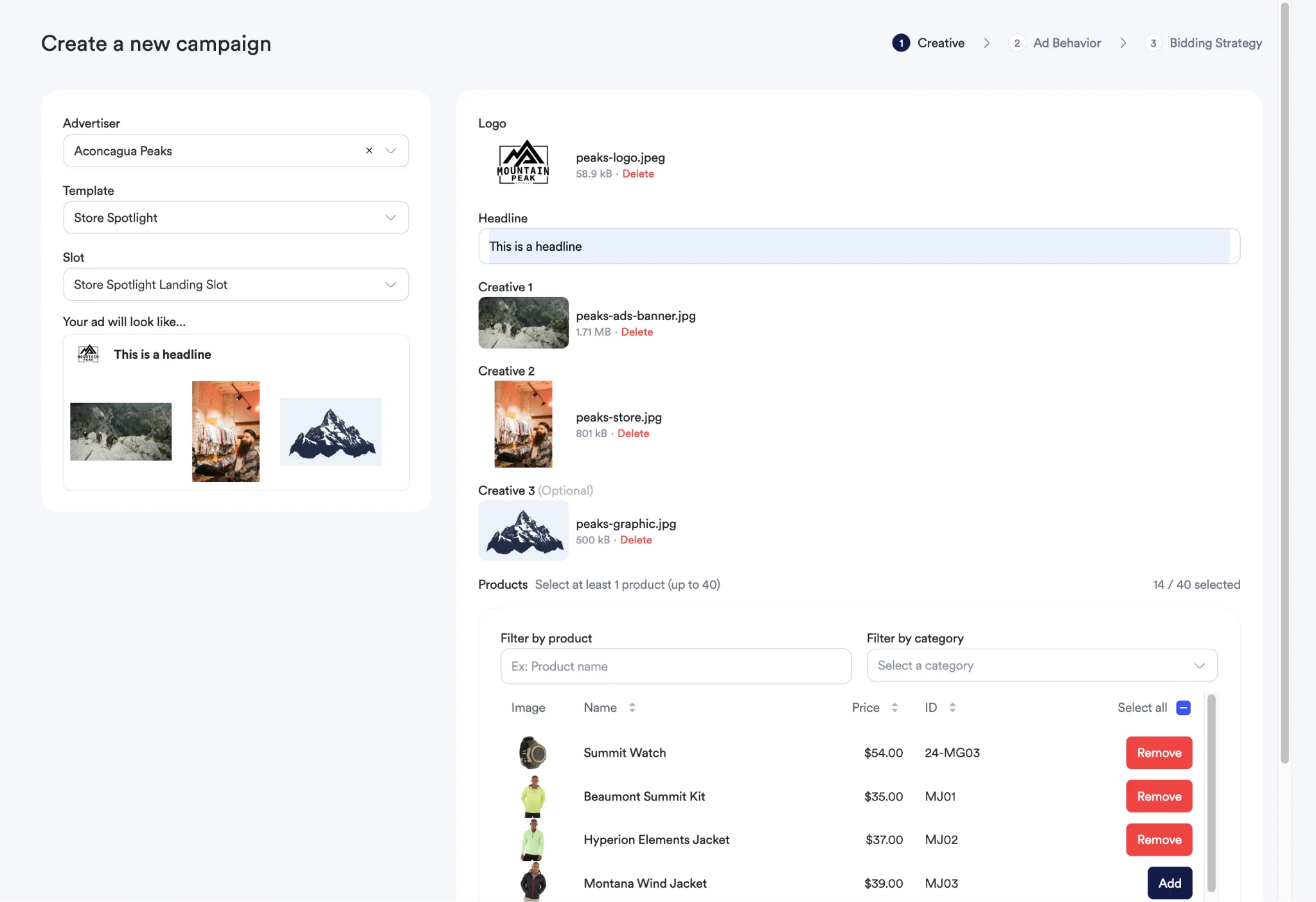
3
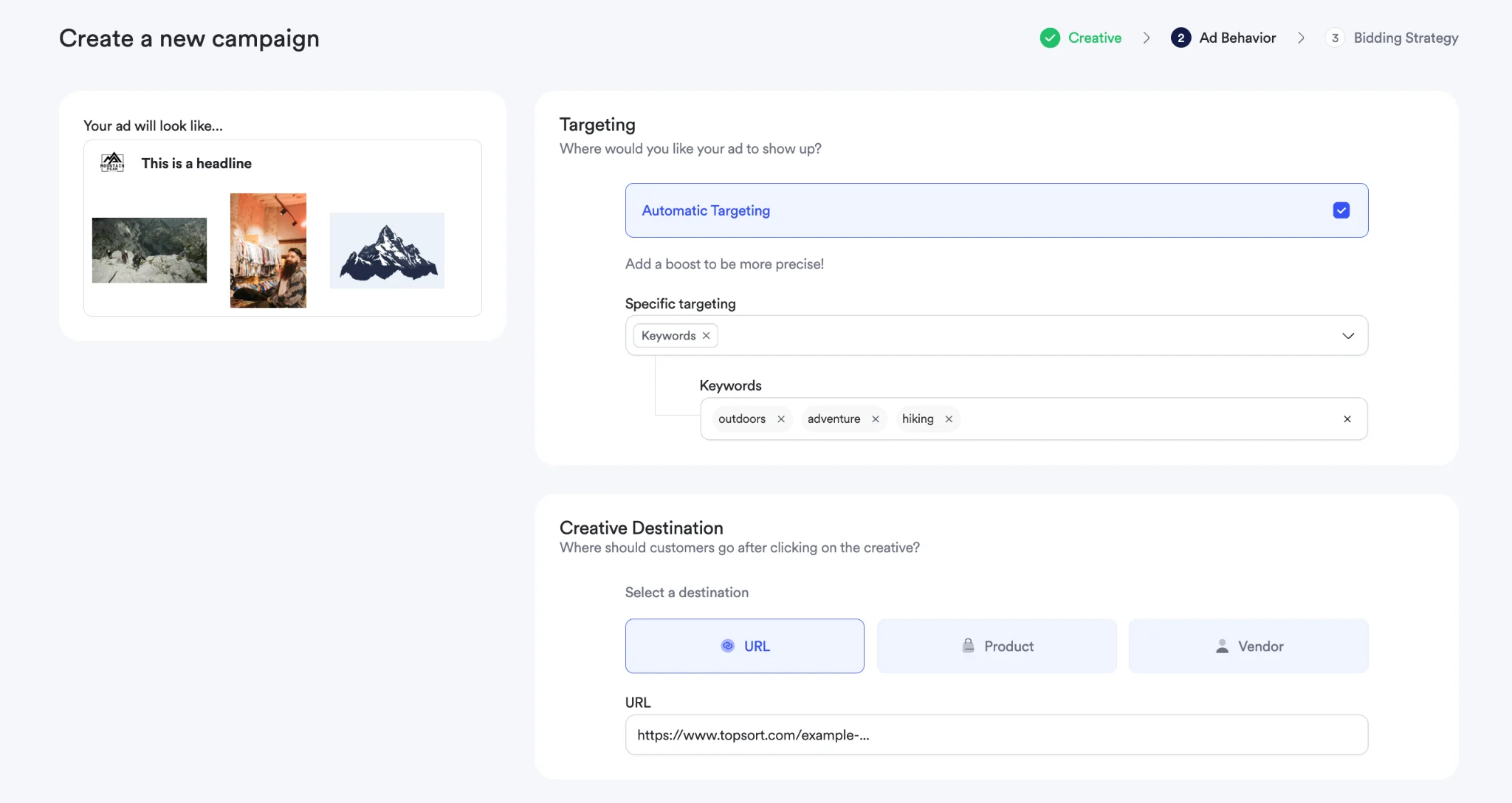
Ad Behavior
Specify targeting and destination settings:
- Targeting Configuration: Set keywords, categories, and audience targeting
- Destination URLs: Choose where clicks should direct users (product pages, vendor pages, custom URLs)
- Geographic Targeting: Select from pre-configured locations to target specific regions, cities, or markets
- Audience Segments: Apply demographic or behavioral targeting
Geographic Targeting Details
Geographic targeting allows you to show your Sponsored Brands campaigns only to users in specific locations:
- Location Selection: Choose from locations configured by your marketplace administrator
- Multiple Targeting: Select multiple locations to reach broader geographic areas
- Campaign Filtering: Only users in targeted locations will see your campaigns during auctions
- No Restrictions: Leave geographic targeting empty to show campaigns to all users regardless of location
Geographic targeting options only appear if locations have been configured for your marketplace. Contact your administrator if geolocation options are not available.
4
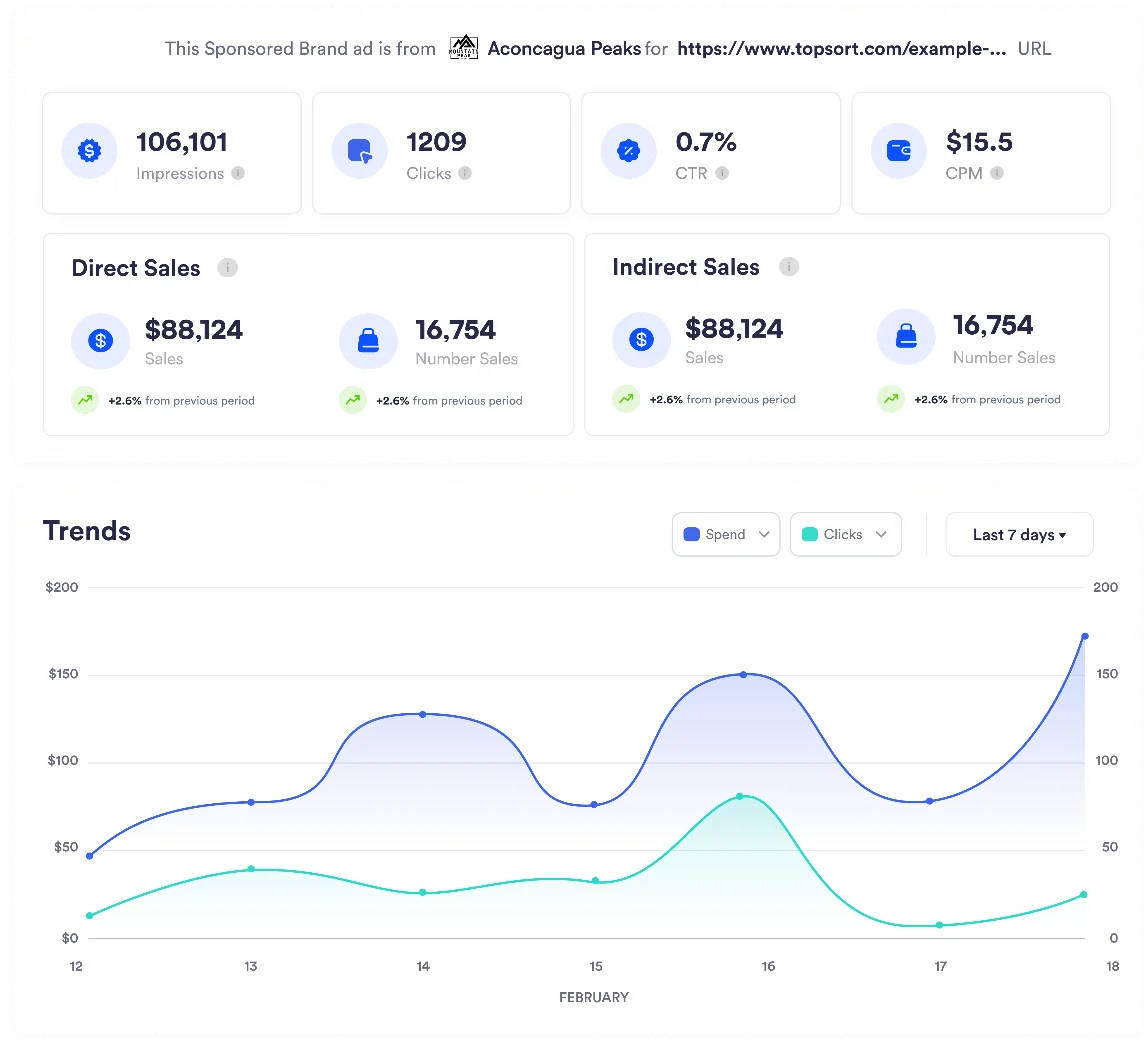
Bidding Strategy & Campaign Settings
Complete your campaign setup:
- Campaign Name: Provide a descriptive name for easy identification
- Campaign Objective: Choose your primary goal (brand awareness, clicks, conversions)
- Campaign Duration: Set start and end dates
- Budget Settings: Define daily or total campaign budgets
- Bidding Strategy: Select between BIDLESS™, manual CPC, or CPM bidding
- Budget Pacing: Configure how budget should be distributed over campaign duration
5
Launch Campaign
Review and launch your sponsored brands campaign:
- Campaign Preview: Review how your campaign will appear across different placements
- Template Validation: Ensure all required fields are completed correctly
- Product Verification: Confirm all selected products are active and destinations work
- Creative Quality Check: Verify uploads meet platform requirements
- Deploy Campaign: Launch and begin performance monitoring
Bulk Create campaigns
Use Bulk Create to create multiple Sponsored Brands campaigns from a spreadsheet.
Open Bulk Create
Open the Sponsored Brands campaign creation flow and select Bulk Create.
Prepare your spreadsheet
Click Download Template to see exactly which fields are required. Fill out the template with the details for each campaign, following the template’s instructions.
Upload and create campaigns
Upload the completed spreadsheet through Bulk Create. Topsort creates the campaigns using the information provided.
Best Practices
Template Selection
- Choose Product Collection for showcasing product variety and driving category exploration
- Use Product Highlight for featuring a single product with compelling content that showcases product benefits
- Use Store Spotlight for brand building and directing traffic to your store
- Use a custom template when you need a different combination of text fields, image fields, and displayed products for your Sponsored Brands placements.
Creative Quality
- Use high-resolution images and videos that showcase products clearly
- Ensure all creative elements align with your brand guidelines
- Keep headlines concise and focused on key value propositions
- Test different creative combinations to optimize performance
Campaign Optimization
- Choose a pre-built or custom template that fits your campaign goals and placements.
- Monitor which products drive the best results and adjust selection accordingly
- Regularly review campaign analytics and adjust targeting and bidding strategies
- Apply insights from successful campaigns to new campaign creation
Refer to the Sponsored Brands Auction section to learn more about how auction requests and responses work, and the View Sponsored Brands Details section for campaign performance tracking.