

Sponsored Listing Campaigns allow you to promote products from the catalog.
You can easily set one up in both the marketplace and self-service dashboards
by clicking the “Create Campaign” button and choosing “Sponsored listings.”
Create campaigns individually using the steps below, or use Bulk Create to create bidding campaigns from a spreadsheet.
How It Works
1
Choose Your Products
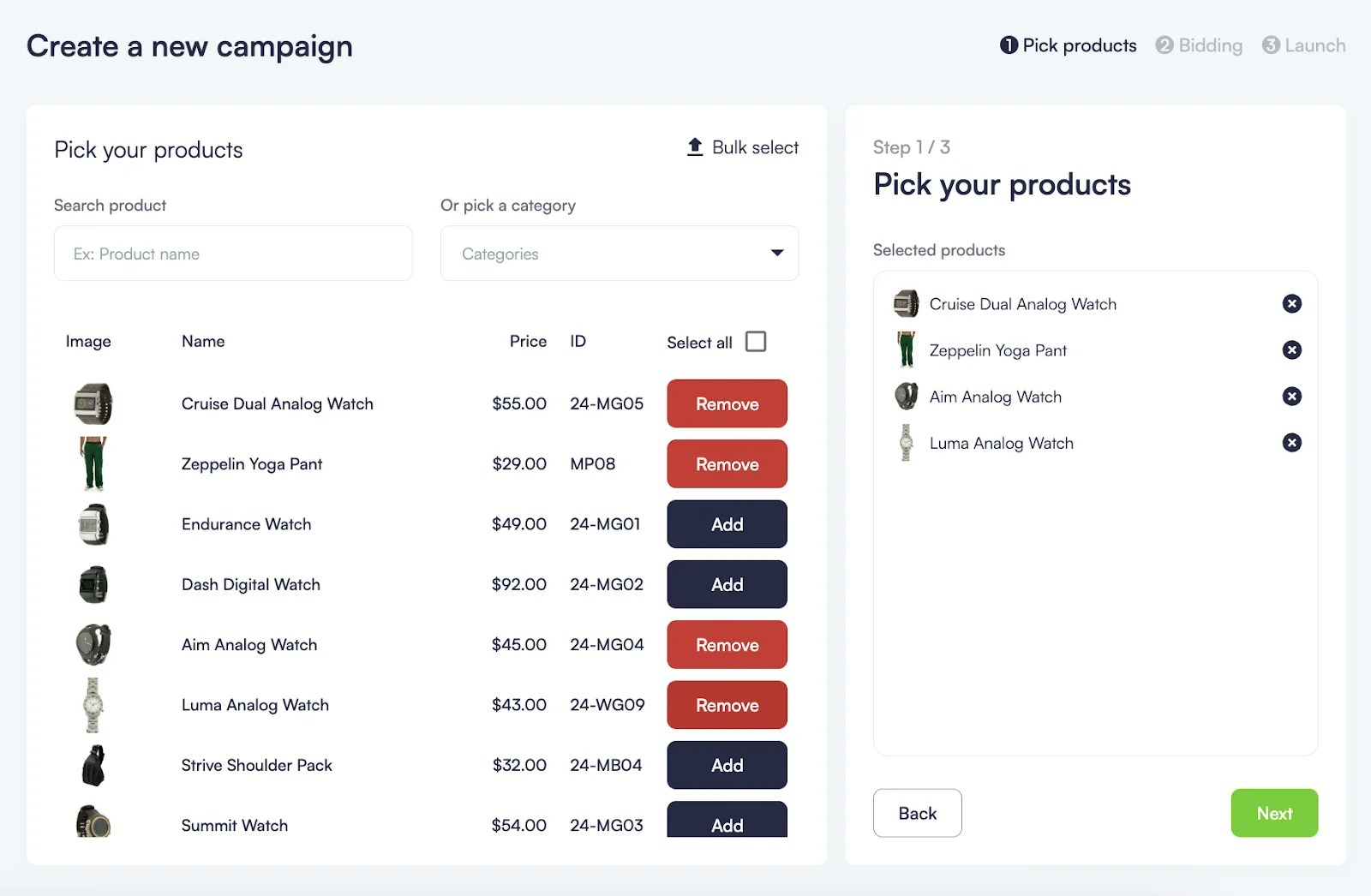
First, you select the products you want to promote from your catalog. You can search or browse products by name or category and add as many as needed. If you have many products, you can use the “Bulk Select” button to upload a CSV file with your product IDs to add them all at once.
2
Set Your Bid
Next, you decide how much you will bid per click for the products in your campaign. Check the Bidding Types section of this Knowledge Base for more information.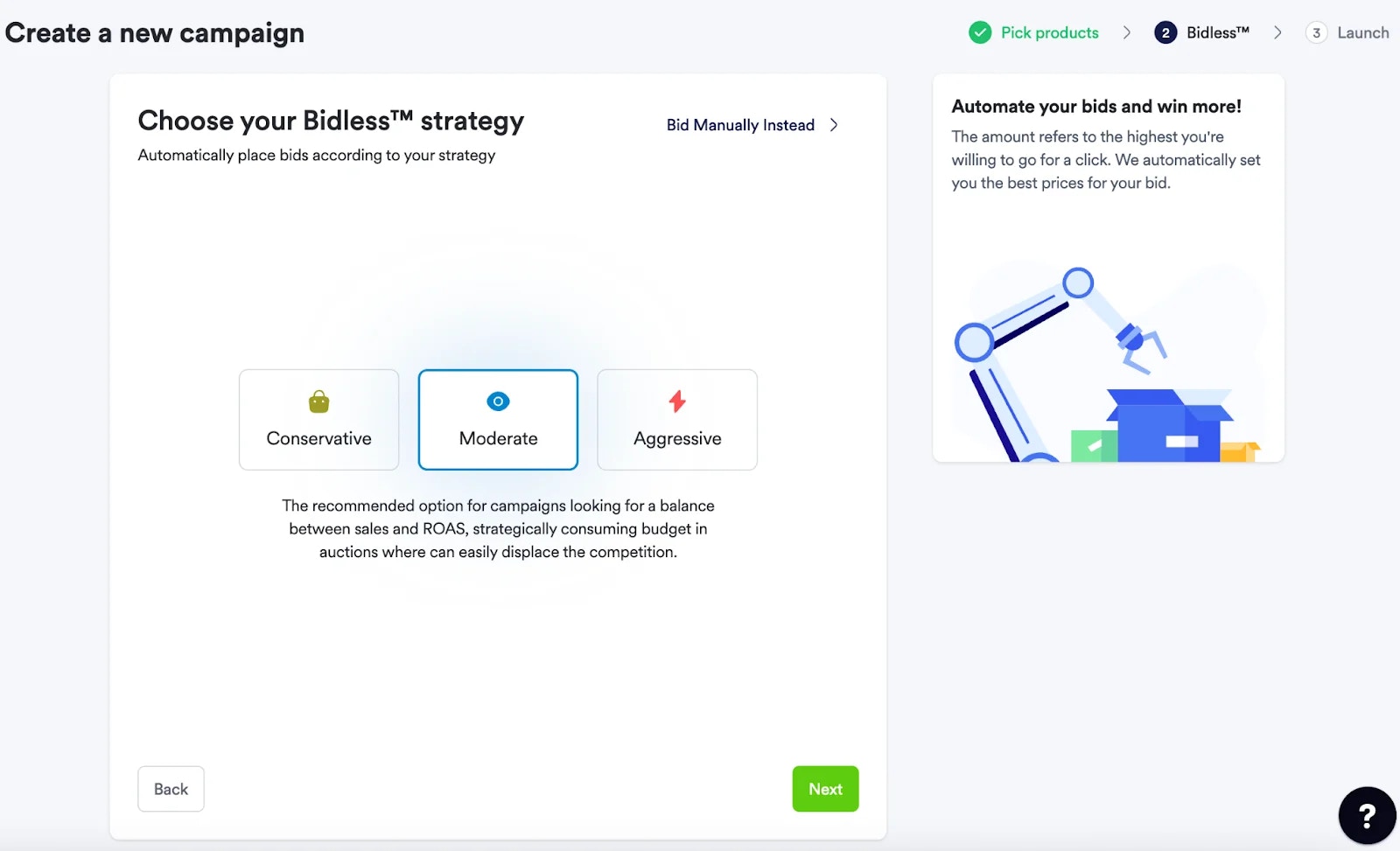
3
Launch Campaign Settings
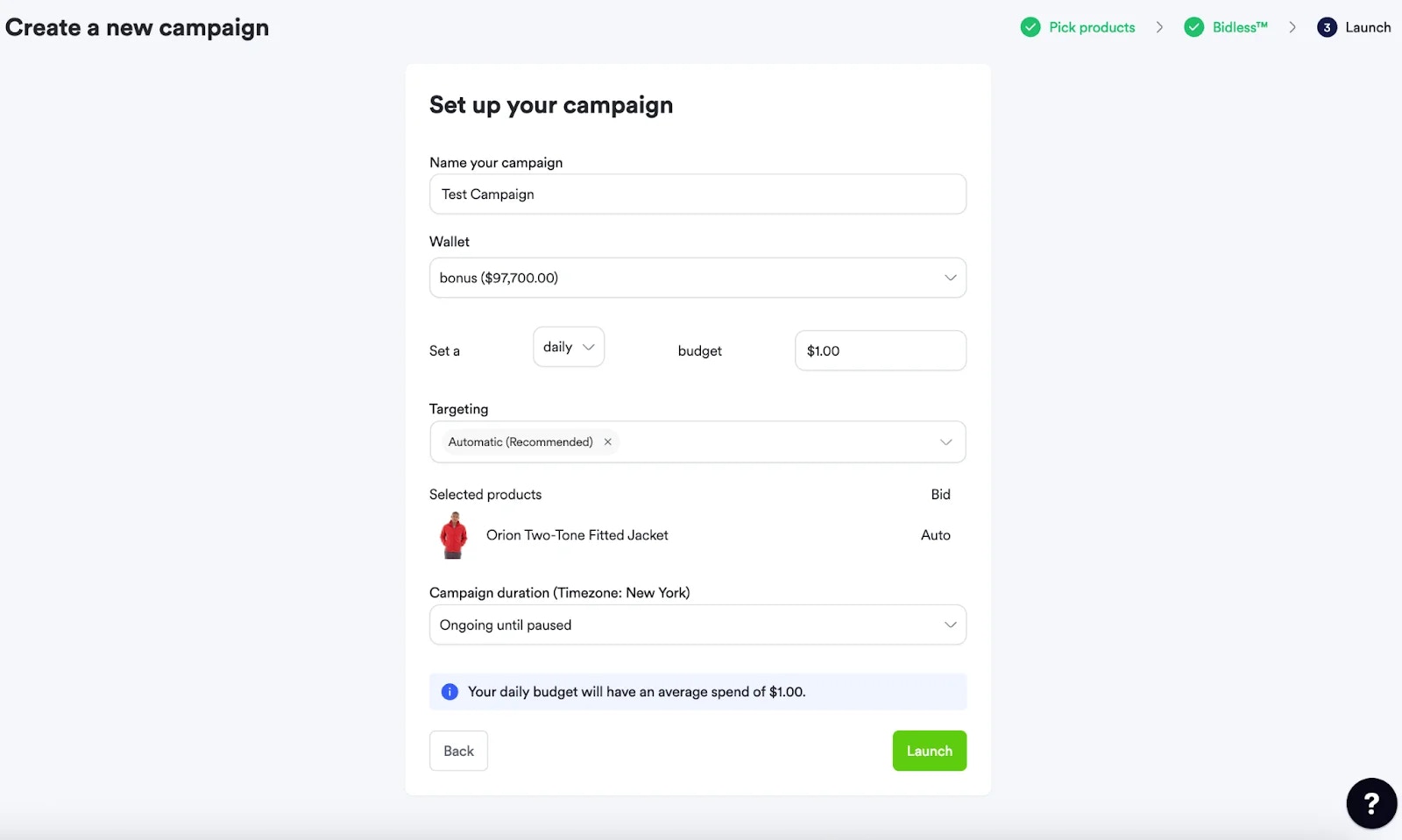
Before launching, fill out the final details. Give your campaign a name (only visible to you and other internal users). Set how long the campaign should run, either by picking an end date or letting it run continuously until you stop it. Choose your maximum daily, weekly, or monthly budget. You can also set a location for targeting, either automatically or manually. Once done, press launch to make your campaign active. Check the Campaign Configuration and Campaign Targeting sections for more information.
Bulk Create campaigns
Use Bulk Create to create Sponsored Listings bidding campaigns from a spreadsheet.Open Bulk Create
- Click Create Campaign.
- Select Sponsored Listing.
- Select Bidding Campaign.
- Click Bulk Create.
Prepare your spreadsheet
Under Bulk Create, click Download Template to see exactly which fields are required. Fill out the template with information including key details such as campaign name, budget, timeframe, targeting, and products.Upload and create campaigns
Upload the completed spreadsheet through Bulk Create. Topsort creates the campaigns using the information provided.Bulk Create and Bulk Select
Bulk Create creates campaigns from a spreadsheet containing campaign settings and products. Bulk Select, used in the individual campaign workflow, adds products to a single campaign by uploading a CSV of product IDs.Refer to the Running Auctions
section to learn more about how to get winners for sponsored listings.